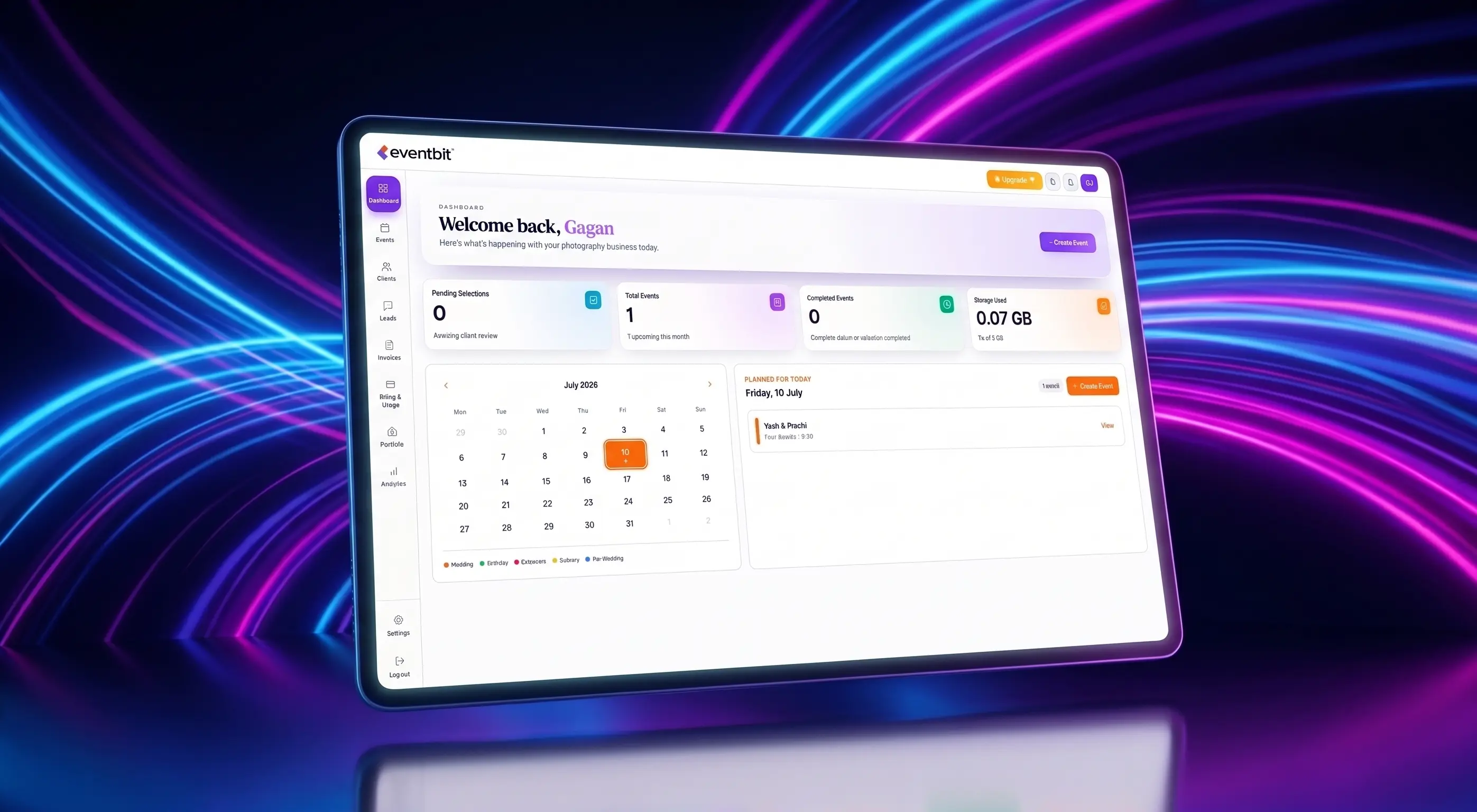
A QR code is the simplest way to reach guests you've never met. No phone numbers to collect, no group to join, no app to install. They point their camera, open your gallery and take a selfie.
It only works if people notice the code, understand why they should scan it, and get to their photos without friction. This guide covers the setup I'd use for a wedding or a corporate event.
Key takeaways
- Create the gallery early and test the code on real phones.
- Place codes where people have a spare moment.
- Tell guests what they'll get and that no app is needed.
- Choose next-day or live delivery based on the event.
- Explain why you're asking for a selfie.
How QR photo sharing works
You create a gallery for the event and generate a QR code for its link. Guests scan the code with their phone camera and the gallery opens in the browser. With face search turned on, they take a selfie and see the photos they appear in.
The code itself doesn't hold any photos. It's only a shortcut to the gallery, so you can keep adding photos after it's printed and the same code keeps working.
1. Set it up before the event
Create the gallery a few days early, even if it's empty. Add the couple's or client's name and a cover image, so the first scan already looks finished.
Then decide who can see what. For a private wedding you may want a PIN. For a public conference, open access is usually fine, and you can control access and downloads per gallery.
- Create the gallery and add a cover photo.
- Turn on face search.
- Choose access rules and download sizes.
- Generate the QR code and test it on two phones.
2. Put the code where people have a spare moment
People scan when they're waiting, not when they're walking. Think about where guests sit or stand still for a minute.
- Table cards at dinner.
- The photo booth or selfie wall.
- The welcome board at the entrance.
- A slide on the stage screen between sessions.
- Lanyards or the printed agenda at conferences.
- The thank-you message after the event.
Print the code at least 5 cm wide and test the printed copy, not just the design file. Dim venues and glossy paper can make scanning harder.
3. Tell people what they'll get
A bare QR code gets ignored. Add one line that explains the benefit: "Scan to find your photos" works better than "Scan me". Mention that no app is needed, because that's the first thing people worry about.
If guests must wait for the photos, say so: "Photos appear here from tomorrow morning." An empty gallery with no explanation feels broken.
4. Decide between live and next-day delivery
Next-day delivery is simpler. You upload edited photos after the event and guests return to the same link. It suits most weddings.
Live delivery is powerful for receptions, launches and conferences, because guests can find photos before they leave. It needs a stable connection and a camera-to-cloud workflow. In Eventbit, live sync is available on Pro and above. Always test at the venue, and have a backup plan for weak networks.
5. Be clear about privacy
A selfie is personal data, so explain why you're asking for one. A short line on the gallery page is enough: the selfie is only used to find their photos. For private events, keep a PIN on the gallery. Our guide to face recognition, consent and DPDP covers this in more detail.
Event-day checklist
Run through this before guests arrive:
- Scan each printed code on both an iPhone and an Android phone.
- Test the code on mobile data, not venue Wi-Fi.
- Check that the gallery opens without errors.
- Brief the coordinator so they can answer questions.
- Keep spare table cards in your kit.
6. Follow up after the event
A code at the venue only reaches people who scanned it. Follow up the next day with a thank-you message containing the same link, sent through the couple or the organiser, so that guests who missed it can still find their photos.
For corporate events, ask the organiser to add the link to their closing email. Attendees are far more likely to open it from a message they expected.
7. Mistakes that make people ignore the code
Most failed QR setups come down to a few avoidable things:
- The code is too small or printed on reflective paper.
- Nothing explains what guests will get.
- The gallery is empty, with no message about when photos arrive.
- The code sits behind a flower arrangement or in a dark corner.
- It was only tested on Wi-Fi, not on mobile data.
Deven
Eventbit Team
Frequently asked questions
How does QR code photo sharing work at a wedding?
Guests scan a printed code with their phone camera, the gallery opens in their browser, and with face search they take a selfie to see their own photos.
Can I add photos after printing the QR code?
Yes. The code points to the gallery link, so any photos you add later appear there without reprinting.
Do guests need an app to scan the code?
No. Most phone cameras read QR codes directly, and with Eventbit the gallery opens in the browser.
Where should I place QR codes at an event?
Put them where people pause: table cards, photo booths, welcome boards, stage screens and printed agendas.
Run your whole wedding workflow in one place
AI face search, client selections, branded galleries and automated delivery — built for studios.
See pricing